Before you start: This is the follow-along build guide. If you want the architecture and design rationale first, read The Definitive Guide to the *arr Stack on Ubuntu with Docker. The walkthrough below is deliberately adapted from TRaSH Guides and Mathias Furenes’ Synology ARR-stack guide, with direct credit preserved in the guide itself.
Credit where it is due: I got my own media automation stack working by leaning heavily on two resources: TRaSH Guides and Mathias Furenes’ How to Install a Full ARR-Stack on Synology NAS Running DSM 7.2 (GitHub repository and PDF). TRaSH Guides shaped the folder layout, hardlink and atomic-move strategy, downloader configuration, and a lot of the application-side best practices. Furenes’ guide gave me an unusually complete, end-to-end view of how the services fit together. This guide adapts those ideas to the Ubuntu/Docker environment I actually built.
The stack documented here is Jellyfin, Sonarr, Radarr, Lidarr, Prowlarr, Bazarr, Seerr, SABnzbd, Deluge, and Gluetun, with FlareSolverr treated as an optional troubleshooting component rather than a default dependency.
Use these tools only with content and services you are authorized to access. Automation does not change copyright, subscription, tracker, indexer, or provider rules. This guide focuses on system design, container networking, storage, and lawful administration. It does not provide sources for copyrighted material.
What we are building
Each service has a narrow job:
| Service | Job in this build |
|---|---|
| Jellyfin | Presents the finished media library to users |
| Seerr | Request and approval interface |
| Sonarr | Manages TV series |
| Radarr | Manages movies |
| Lidarr | Manages music |
| Prowlarr | Centralizes indexer configuration and syncs it to the *arr apps |
| Bazarr | Manages subtitles for Sonarr and Radarr libraries |
| SABnzbd | Usenet download client |
| Deluge | BitTorrent download client |
| Gluetun | Provides the VPN network namespace and kill-switch behavior for Deluge when required |
| FlareSolverr | Optional compatibility tool for a specific supported indexer problem; not a default component |
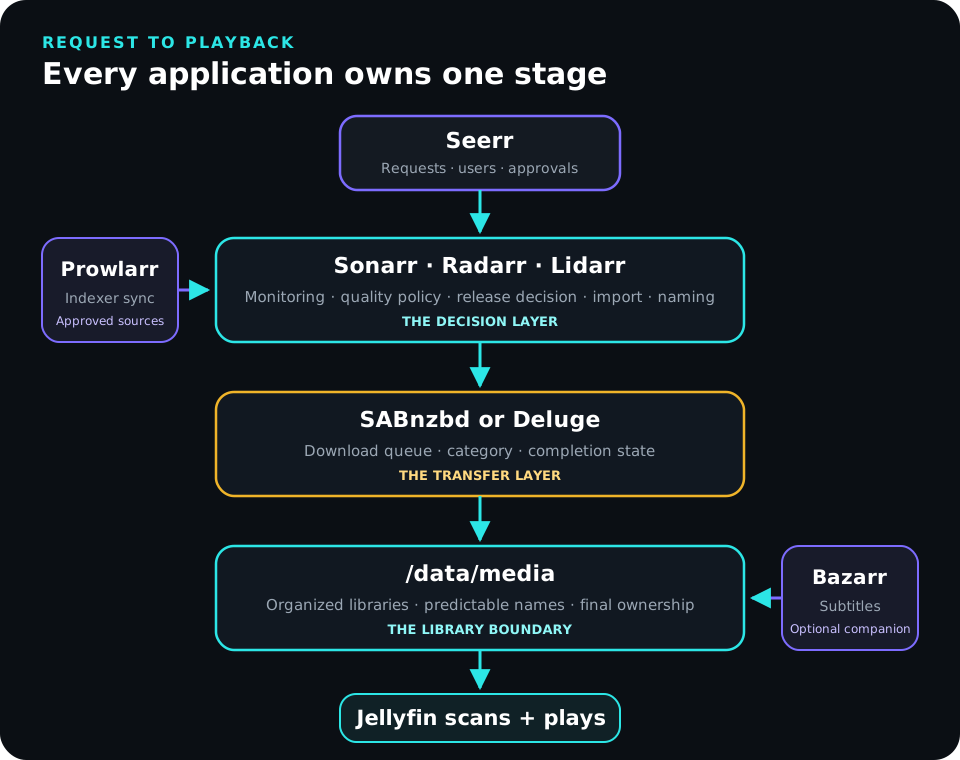
A movie request can look like this:
- A user requests a title in Seerr.
- Seerr sends the request to Radarr.
- Radarr applies the root folder, monitoring policy, and quality profile.
- Prowlarr supplies Radarr with the search integrations you configured.
- Radarr sends the chosen job to SABnzbd or Deluge.
- The downloader writes into the shared download tree.
- Radarr imports and renames the completed file into the movie library.
- Bazarr can add subtitles after the organized media exists.
- Jellyfin scans the finished library and presents it to users.
The hard part is not launching containers. It is making every service agree on where files are, who can read and write them, and which network path each service should use.
The reference contract for this media series
This revision deliberately matches the Jellyfin guide instead of inventing another path and ownership model.
| Contract | Reference choice |
|---|---|
| Host data root | /srv/data |
| Automation container data root | /data |
| Finished media on host | /srv/data/media |
| Jellyfin view | /media:ro |
| Compose project | /srv/compose/arr-stack |
| Automation appdata | /srv/appdata/arr-stack |
| LinuxServer service identity | host media UID/GID |
| Seerr config identity | UID/GID 1000:1000 as required by the official image |
| Internal automation network | media-control |
| Published management ports | bound to the host’s trusted LAN address, not every interface |
The host-side /srv/data tree is shared by the applications that download and import files:
/srv/data
├── downloads
│   ├── torrents
│   │   ├── incomplete
│   │   └── complete
│   │       ├── movies
│   │       ├── shows
│   │       └── music
│   └── usenet
│       ├── incomplete
│       └── complete
│           ├── movies
│           ├── shows
│           └── music
└── media
    ├── movies
    ├── shows
    └── music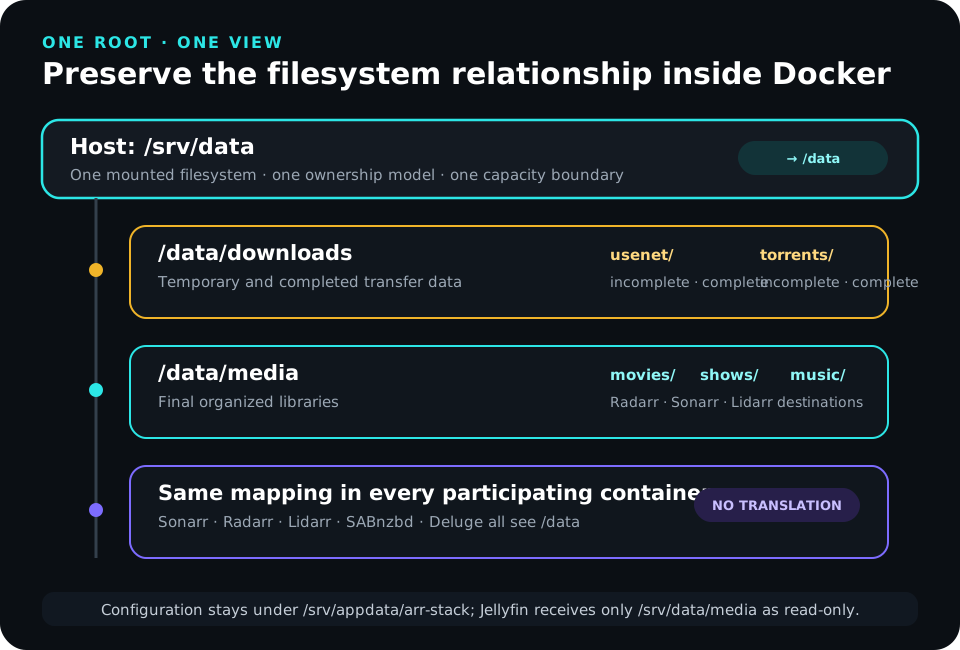
Inside Sonarr, Radarr, Lidarr, SABnzbd, and Deluge, that entire host tree is mounted as /data. Jellyfin is intentionally different: it only receives /srv/data/media as /media:ro because it does not participate in the import workflow.
The three design rules that prevented most of my problems
1. Give downloaders and importers one consistent view of storage
Do not make Sonarr see /tv, Radarr see /movies, and the download clients see /downloads when all of those locations live under one filesystem tree.
Expose one parent root as /data. That keeps download and library paths on the same container mount and gives hardlinks and atomic moves a chance to work.
2. Keep application configuration separate from media
The media tree is large. The application databases and settings are small and operationally important.
/srv/appdata/arr-stack/
├── bazarr
├── deluge
├── gluetun
├── lidarr
├── prowlarr
├── radarr
├── sabnzbd
├── seerr
└── sonarr
Back up appdata and Compose separately from the media library.
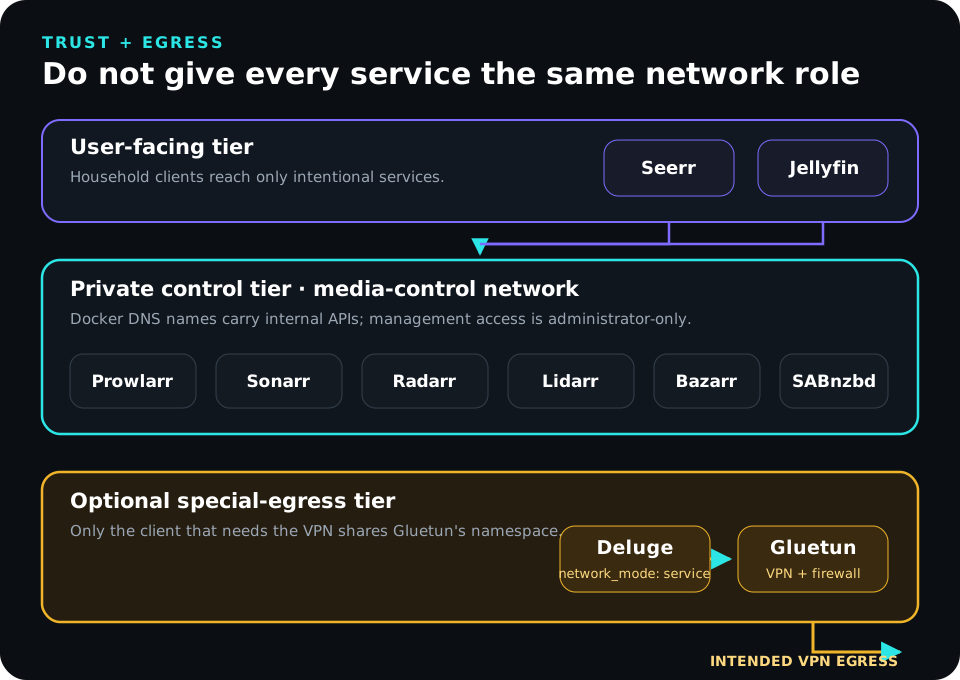
3. Route only the downloader that actually needs the VPN
Sonarr, Radarr, Lidarr, Prowlarr, Bazarr, Seerr, and Jellyfin do not need to share the torrent client’s VPN namespace in a normal setup.
In this design, Deluge shares Gluetun’s network namespace. The rest of the stack stays on the normal Docker application network.
Why hardlinks and atomic moves matter
If the source and destination are on the same filesystem, an import can be a metadata operation instead of a full copy followed by a delete.
For torrents, a hardlink allows the completed torrent to stay available for seeding while the organized library path refers to the same underlying file data.
/data/downloads/torrents/complete/movies/example.mkv
/data/media/movies/Example Movie (2026)/Example Movie (2026).mkv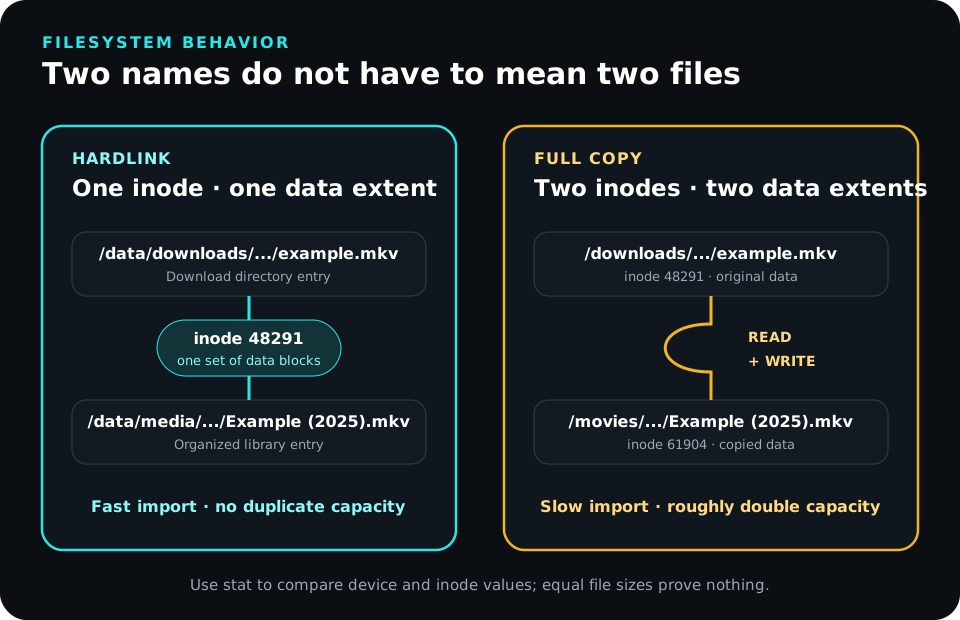
Hardlinks require the two paths to be on the same filesystem and the service identity to have permission to create the link. We will test that before trusting it.
Step 1: prepare Ubuntu and install Docker correctly
This guide targets Ubuntu Server 26.04 LTS or 24.04 LTS. Docker also supports Ubuntu 22.04 LTS at the time of this revision.
Check the host first:
cat /etc/os-release
dpkg --print-architecture
uname -r
If Docker is already installed from Docker’s official repository, verify it:
sudo docker version
sudo docker compose version
sudo docker info
sudo docker run --rm hello-world
If hello-world succeeds, continue to Step 2.
If Docker is not installed, remove conflicting distribution packages if present:
sudo apt remove -y $(dpkg --get-selections docker.io docker-compose docker-compose-v2 docker-doc docker-buildx podman-docker containerd runc | cut -f1)Add Docker’s official key and repository:
sudo apt update
sudo apt install -y ca-certificates curl
sudo install -m 0755 -d /etc/apt/keyrings
sudo curl -fsSL https://download.docker.com/linux/ubuntu/gpg -o /etc/apt/keyrings/docker.asc
sudo chmod a+r /etc/apt/keyrings/docker.asc

sudo tee /etc/apt/sources.list.d/docker.sources >/dev/null <<EOF
Types: deb
URIs: https://download.docker.com/linux/ubuntu
Suites: $(. /etc/os-release && echo "${UBUNTU_CODENAME:-$VERSION_CODENAME}")
Components: stable
Architectures: $(dpkg --print-architecture)
Signed-By: /etc/apt/keyrings/docker.asc
EOF

sudo apt update
sudo apt install -y docker-ce docker-ce-cli containerd.io docker-buildx-plugin docker-compose-plugin
Verify the result:
sudo systemctl status docker --no-pager
sudo docker version
sudo docker compose version
sudo docker run --rm hello-world
Stop here if hello-world fails. A media stack will only make a broken Docker installation harder to diagnose.
This guide continues to use sudo docker ... rather than silently adding a login account to the docker group, because Docker-group membership is effectively root-level control of the host.
Step 2: prepare and prove the shared data root
The reference host path is:
/srv/dataIf /srv/data is a separate local filesystem, NFS mount, or SMB mount, verify that the exact path is mounted before creating download directories:
mountpoint -q /srv/data
echo $?
Exit status 0 means /srv/data itself is a mount point. Do not use findmnt --target /srv/data as the only proof; that command can report a parent filesystem and make a missing mount look healthy.
If /srv/data is intentionally an ordinary directory on the host’s root filesystem, the mountpoint test is not expected to pass. In that case, continue only after confirming that is your intended storage design.
Create the reference tree:
sudo install -d -o root -g root -m 0755 /srv/data
sudo mkdir -p /srv/data/downloads/torrents/{incomplete,complete/{movies,shows,music}}
sudo mkdir -p /srv/data/downloads/usenet/{incomplete,complete/{movies,shows,music}}
sudo mkdir -p /srv/data/media/{movies,shows,music}
If you followed the Jellyfin guide, /srv/data/media, movies, and shows may already exist. Do not move a working library just to rerun these commands.
For remote storage, prove the mount again after a reboot before you ever enable automatic container startup. Docker will happily write into a plain local directory at a missing mount point.
Step 3: reuse the media service identity and set permissions deliberately
The Jellyfin guide creates a host service account named media. Reuse it for the LinuxServer-based automation containers.
If it does not exist yet:
getent group media >/dev/null || sudo groupadd --system media
id media >/dev/null 2>&1 || sudo useradd \
  --system \
  --gid media \
  --home-dir /var/lib/jellyfin \
  --create-home \
  --shell /usr/sbin/nologin \
  media
Record the numeric IDs:
id media
MEDIA_UID=$(id -u media)
MEDIA_GID=$(id -g media)
printf 'media uid=%s gid=%s\n' "$MEDIA_UID" "$MEDIA_GID"
LinuxServer images accept PUID and PGID, so they can run with these exact host IDs.
Create appdata for the LinuxServer-style containers:
sudo install -d -o media -g media -m 0750 /srv/appdata/arr-stack
sudo install -d -o media -g media -m 0750 /srv/appdata/arr-stack/{gluetun,deluge,sabnzbd,prowlarr,sonarr,radarr,lidarr,bazarr}
Seerr is the exception. The official image runs as the node user with UID 1000 and expects /app/config to be writable by that identity:
sudo install -d -o 1000 -g 1000 -m 0750 /srv/appdata/arr-stack/seerrDo not force Seerr into the media UID just to make every row of a table look consistent. It does not need direct access to the media filesystem in this design.
For a fresh reference data tree, give the media service identity ownership of the download and library directories and preserve group inheritance:
sudo chown media:media /srv/data/downloads /srv/data/media
sudo chown media:media /srv/data/media/{movies,shows,music}
sudo chown -R media:media /srv/data/downloads
sudo chmod 2775 /srv/data/downloads /srv/data/media
sudo find /srv/data/downloads -type d -exec chmod 2775 {} +
sudo find /srv/data/downloads -type f -exec chmod 0664 {} +
sudo chmod 2775 /srv/data/media/{movies,shows,music}
If /srv/data/media already contains an established library, do not recursively chown it merely because this guide says media. Fix ownership, ACLs, or NFS identity mapping deliberately. The useful test is whether the service identity can perform the required operation:
sudo -u media touch /srv/data/media/movies/.eldritch-write-test
sudo -u media rm /srv/data/media/movies/.eldritch-write-test
sudo -u media touch /srv/data/downloads/.eldritch-write-test
sudo -u media rm /srv/data/downloads/.eldritch-write-test
If either test fails, stop and fix the host/storage permission model before involving Docker.
Test hardlink capability now
Use the same service identity across the download and media trees:
sudo -u media touch /srv/data/downloads/.eldritch-hardlink-test
sudo -u media ln /srv/data/downloads/.eldritch-hardlink-test /srv/data/media/.eldritch-hardlink-test-link
stat /srv/data/downloads/.eldritch-hardlink-test /srv/data/media/.eldritch-hardlink-test-link
sudo -u media rm /srv/data/downloads/.eldritch-hardlink-test /srv/data/media/.eldritch-hardlink-test-link
The device and inode should match. If the link fails, fix the filesystem/export/permission design or accept that imports will copy instead of hardlink.
Step 4: collect the VPN provider values before writing Compose
This is where the older guide left a non-expert staring at REPLACE_ME values.
The reference lane below uses Gluetun with WireGuard. Before continuing, open Gluetun’s maintained provider setup directory, choose your provider, and collect the values that provider’s page marks as required.
For native WireGuard integrations, the common values are:
VPN_SERVICE_PROVIDER
VPN_TYPE=wireguard
WIREGUARD_PRIVATE_KEY
WIREGUARD_ADDRESSES
Some providers require additional values such as a server region, preshared key, or provider-specific option. Do not guess them from another provider’s example.
If your provider’s Gluetun page uses OpenVPN or a custom WireGuard configuration instead, follow that provider’s maintained environment block and substitute it for the WireGuard variables in this guide.
Stop condition: do not create or start Gluetun until you have the provider-specific values in front of you.
Step 5: create the Compose project and environment file
Create a root-owned but traversable project directory:
sudo install -d -o root -g root -m 0755 /srv/compose/arr-stackFind the trusted LAN address that should host the management interfaces:
ip -br addrDo not default the management ports to every interface. Pick the host address on the trusted LAN or management VLAN that should reach these services.
Open the environment file:
sudoedit /srv/compose/arr-stack/.envUse the actual numeric IDs printed by id media, your timezone, your host’s trusted LAN address, and your VPN provider values:
PUID=REPLACE_WITH_MEDIA_UID
PGID=REPLACE_WITH_MEDIA_GID
TZ=America/Chicago

DATA_ROOT=/srv/data
APPDATA_ROOT=/srv/appdata/arr-stack
STACK_BIND_ADDRESS=REPLACE_WITH_TRUSTED_LAN_IP

VPN_SERVICE_PROVIDER=REPLACE_WITH_PROVIDER
VPN_TYPE=wireguard
WIREGUARD_PRIVATE_KEY=REPLACE_WITH_PRIVATE_KEY
WIREGUARD_ADDRESSES=REPLACE_WITH_ADDRESS
Protect it:
sudo chown root:root /srv/compose/arr-stack/.env
sudo chmod 0600 /srv/compose/arr-stack/.env
Check that you did not leave placeholders behind:
sudo grep -n 'REPLACE_WITH' /srv/compose/arr-stack/.envThat command should print nothing before you continue.
Do not commit the real .env to Git. Keep a separate .env.example with placeholders if you want the variable names in version control.
Step 6: build the Compose file
Open the file with elevated editing permissions:
sudoedit /srv/compose/arr-stack/compose.yamlUse this reference configuration:
services:
  gluetun:
    image: qmcgaw/gluetun:latest
    container_name: gluetun
    cap_add:
      - NET_ADMIN
    devices:
      - /dev/net/tun:/dev/net/tun
    environment:
      VPN_SERVICE_PROVIDER: ${VPN_SERVICE_PROVIDER}
      VPN_TYPE: ${VPN_TYPE}
      WIREGUARD_PRIVATE_KEY: ${WIREGUARD_PRIVATE_KEY}
      WIREGUARD_ADDRESSES: ${WIREGUARD_ADDRESSES}
      TZ: ${TZ}
    volumes:
      - ${APPDATA_ROOT}/gluetun:/gluetun
    ports:
      - "${STACK_BIND_ADDRESS}:8112:8112/tcp"
    networks:
      - media-control
    restart: unless-stopped

  deluge:
    image: lscr.io/linuxserver/deluge:latest
    container_name: deluge
    network_mode: service:gluetun
    depends_on:
      gluetun:
        condition: service_healthy
    environment:
      PUID: ${PUID}
      PGID: ${PGID}
      TZ: ${TZ}
      UMASK: "002"
    volumes:
      - ${APPDATA_ROOT}/deluge:/config
      - ${DATA_ROOT}:/data
    restart: unless-stopped
    security_opt:
      - no-new-privileges:true

  sabnzbd:
    image: lscr.io/linuxserver/sabnzbd:latest
    container_name: sabnzbd
    environment: &lsio-env
      PUID: ${PUID}
      PGID: ${PGID}
      TZ: ${TZ}
      UMASK: "002"
    volumes:
      - ${APPDATA_ROOT}/sabnzbd:/config
      - ${DATA_ROOT}:/data
    ports:
      - "${STACK_BIND_ADDRESS}:8080:8080/tcp"
    networks:
      - media-control
    restart: unless-stopped
    security_opt:
      - no-new-privileges:true

  prowlarr:
    image: lscr.io/linuxserver/prowlarr:latest
    container_name: prowlarr
    environment: *lsio-env
    volumes:
      - ${APPDATA_ROOT}/prowlarr:/config
    ports:
      - "${STACK_BIND_ADDRESS}:9696:9696/tcp"
    networks:
      - media-control
    restart: unless-stopped
    security_opt:
      - no-new-privileges:true

  sonarr:
    image: lscr.io/linuxserver/sonarr:latest
    container_name: sonarr
    environment: *lsio-env
    volumes:
      - ${APPDATA_ROOT}/sonarr:/config
      - ${DATA_ROOT}:/data
    ports:
      - "${STACK_BIND_ADDRESS}:8989:8989/tcp"
    networks:
      - media-control
    restart: unless-stopped
    security_opt:
      - no-new-privileges:true

  radarr:
    image: lscr.io/linuxserver/radarr:latest
    container_name: radarr
    environment: *lsio-env
    volumes:
      - ${APPDATA_ROOT}/radarr:/config
      - ${DATA_ROOT}:/data
    ports:
      - "${STACK_BIND_ADDRESS}:7878:7878/tcp"
    networks:
      - media-control
    restart: unless-stopped
    security_opt:
      - no-new-privileges:true

  lidarr:
    image: lscr.io/linuxserver/lidarr:latest
    container_name: lidarr
    environment: *lsio-env
    volumes:
      - ${APPDATA_ROOT}/lidarr:/config
      - ${DATA_ROOT}:/data
    ports:
      - "${STACK_BIND_ADDRESS}:8686:8686/tcp"
    networks:
      - media-control
    restart: unless-stopped
    security_opt:
      - no-new-privileges:true

  bazarr:
    image: lscr.io/linuxserver/bazarr:latest
    container_name: bazarr
    environment: *lsio-env
    volumes:
      - ${APPDATA_ROOT}/bazarr:/config
      - ${DATA_ROOT}/media:/data/media
    ports:
      - "${STACK_BIND_ADDRESS}:6767:6767/tcp"
    networks:
      - media-control
    restart: unless-stopped
    security_opt:
      - no-new-privileges:true

  seerr:
    image: ghcr.io/seerr-team/seerr:v3
    container_name: seerr
    init: true
    environment:
      TZ: ${TZ}
      PORT: "5055"
      LOG_LEVEL: info
    volumes:
      - ${APPDATA_ROOT}/seerr:/app/config
    ports:
      - "${STACK_BIND_ADDRESS}:5055:5055/tcp"
    networks:
      - media-control
    healthcheck:
      test: wget --no-verbose --tries=1 --spider http://localhost:5055/api/v1/settings/public || exit 1
      start_period: 20s
      timeout: 3s
      interval: 15s
      retries: 3
    security_opt:
      - no-new-privileges:true
    cap_drop:
      - ALL
    restart: unless-stopped

networks:
  media-control:
    name: media-control
Important details:
- Sonarr, Radarr, Lidarr, SABnzbd, and Deluge see the same host tree as
/data. - Deluge has no independent Docker network; it shares Gluetun’s namespace.
- The rest of the stack stays on
media-control. - Seerr does not receive
PUID/PGID; its config directory was prepared for UID 1000 instead. - Host ports bind to
STACK_BIND_ADDRESSrather than0.0.0.0. - Jellyfin is not duplicated here. It remains its own deployment from the preceding guide.
Step 7: validate Compose, then start only the VPN path
Validate before starting anything:
cd /srv/compose/arr-stack
sudo docker compose config --quiet
sudo docker compose pull
If config --quiet reports an error, fix it now.
Start only Gluetun and Deluge first:
sudo docker compose up -d gluetun deluge
sudo docker compose ps
sudo docker compose logs --tail=100 gluetun deluge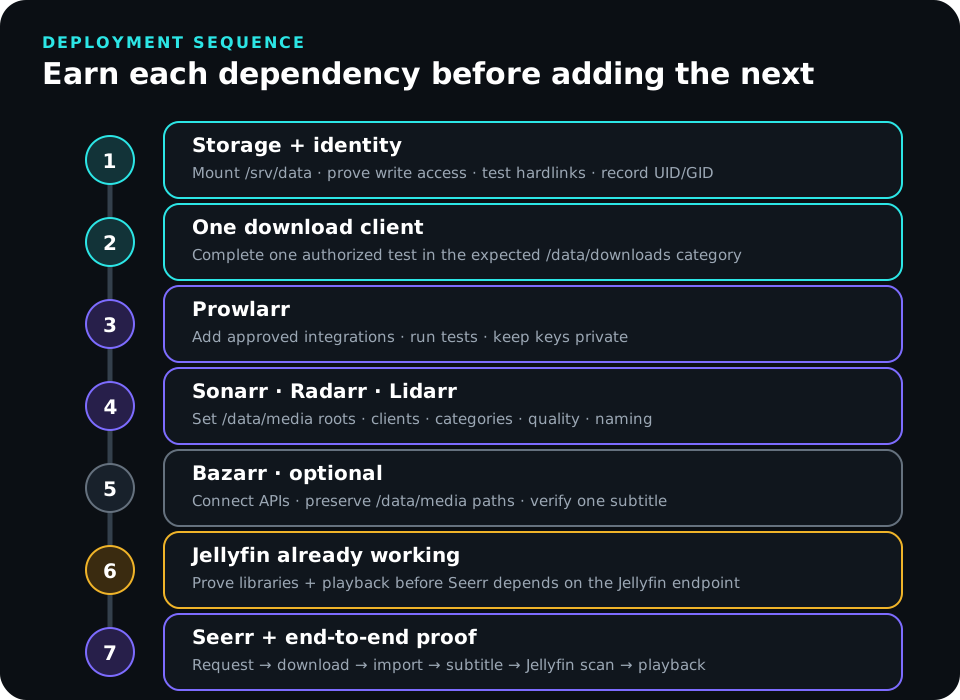
Do not start the rest of the stack until Gluetun is healthy and you have proven the downloader cannot silently fall back to the host’s normal internet path.
Check the network model:
sudo docker inspect deluge --format '{{.HostConfig.NetworkMode}}'The result should show that Deluge is sharing Gluetun’s network namespace.
Test the kill switch deliberately:
- confirm Deluge’s Web UI works through the host’s bound port
8112; - confirm the downloader’s egress uses the VPN path;
- stop Gluetun;
- verify Deluge loses external connectivity instead of using the host’s normal route;
- start Gluetun again and verify recovery.
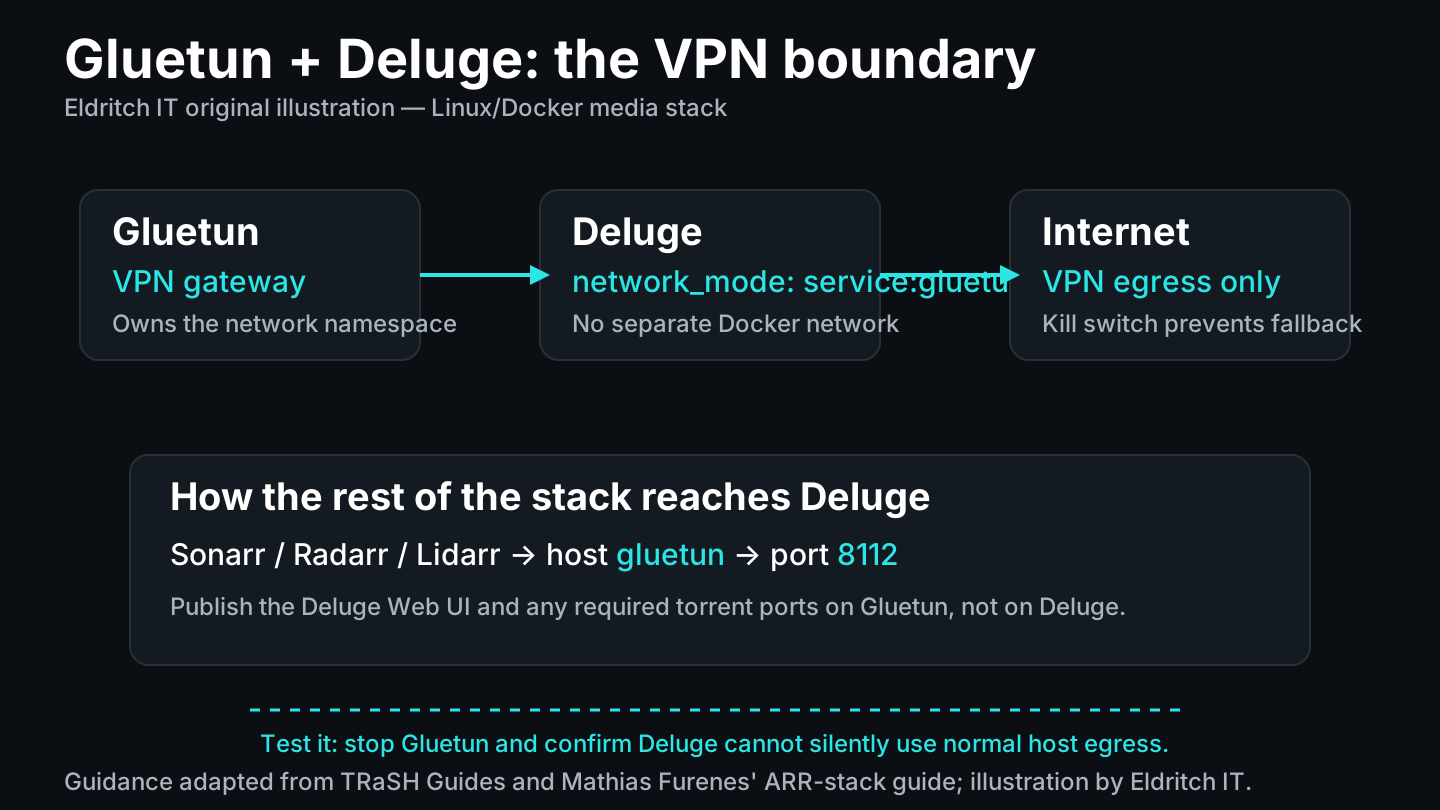
Do not publish VPN keys, account identifiers, assigned ports, or provider configuration screenshots.
Step 8: configure Deluge
Set Deluge’s paths to the shared container tree:
Download to: /data/downloads/torrents/incomplete
Move completed to: /data/downloads/torrents/complete
Enable the Label plugin and create labels such as:
movies
shows
music
Those labels let Radarr, Sonarr, and Lidarr distinguish their jobs.
Because Deluge shares Gluetun’s network namespace, the other containers reach the Web UI at:
http://gluetun:8112not localhost and not http://deluge:8112.
Configure seeding time and ratio according to the rules of the service you use. Do not let an automation app remove a torrent before the download client considers its obligations complete.
Step 9: start and configure SABnzbd
Start SABnzbd:
cd /srv/compose/arr-stack
sudo docker compose up -d sabnzbd
sudo docker compose logs --tail=100 sabnzbd
Set the temporary folder:
/data/downloads/usenet/incompleteSet the completed folder:
/data/downloads/usenet/completeCreate categories:
| Category | Folder |
|---|---|
| movies | movies |
| shows | shows |
| music | music |
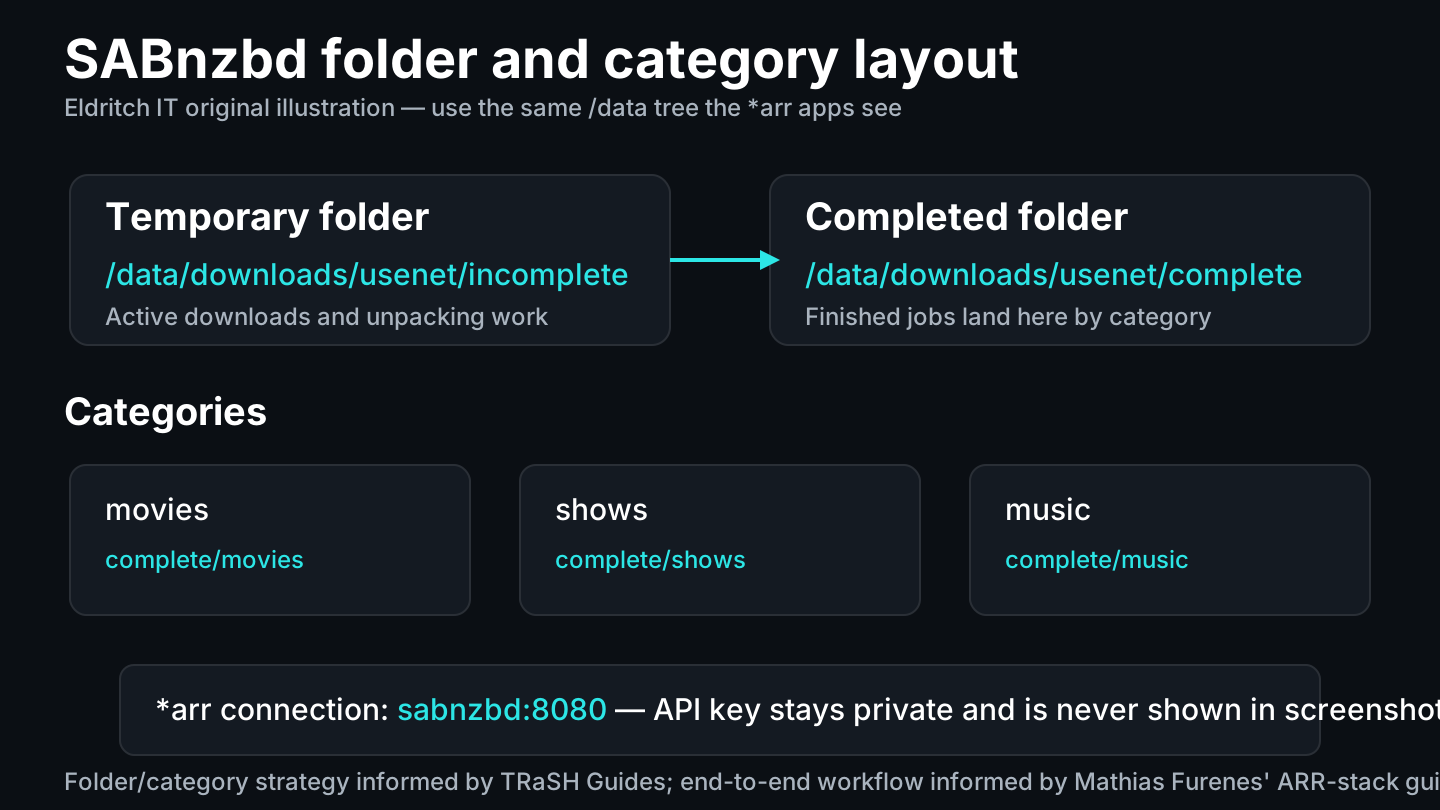
The *arr applications reach it internally at:
http://sabnzbd:8080Use SABnzbd’s API key inside Sonarr, Radarr, and Lidarr. Keep it private.
Run one small authorized test job and confirm the completed output is writable by the media identity.
Step 10: start the control applications and configure Prowlarr
Start the services Prowlarr needs to talk to:
sudo docker compose up -d prowlarr sonarr radarr lidarr
sudo docker compose ps
Add only search integrations you are authorized to use and test each one.
Then add applications to Prowlarr using Docker service names:
| Application | URL |
|---|---|
| Sonarr | http://sonarr:8989 |
| Radarr | http://radarr:7878 |
| Lidarr | http://lidarr:8686 |
Get each API key from that application’s settings. Do not use localhost; inside the Prowlarr container, localhost means Prowlarr itself.
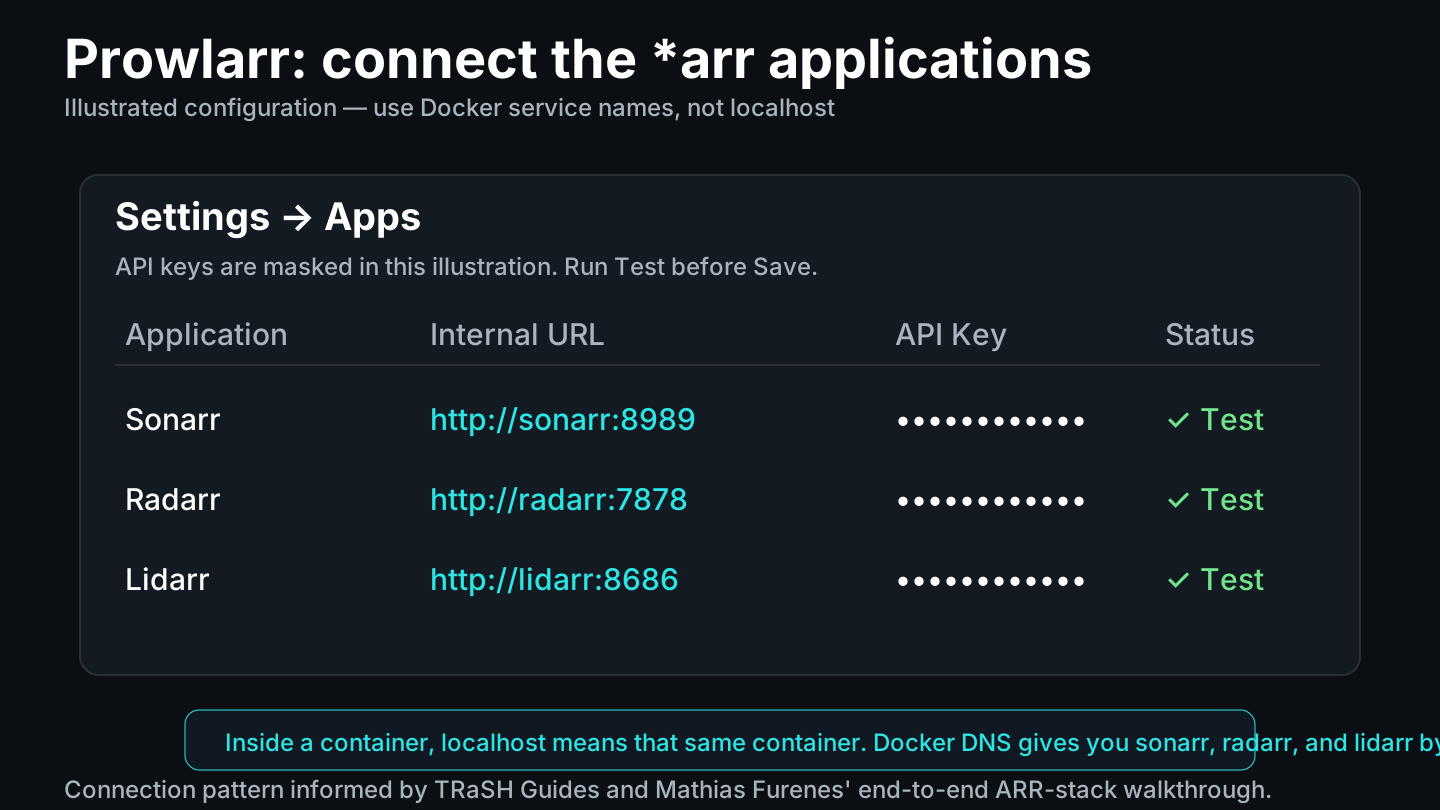
Confirm Prowlarr’s built-in application tests succeed before continuing.
Step 11: configure Sonarr
Set Sonarr’s root folder to:
/data/media/showsConfigure SABnzbd:
Host: sabnzbd
Port: 8080
Category: shows
Configure Deluge behind Gluetun:
Host: gluetun
Port: 8112
Category/Label: shows
Leave Completed Download Handling enabled unless you have a specific reason not to.
Configure naming and a quality profile before importing a large existing library. TRaSH Guides has deeper quality and custom-format recommendations; use the policy that fits your actual clients and storage budget.
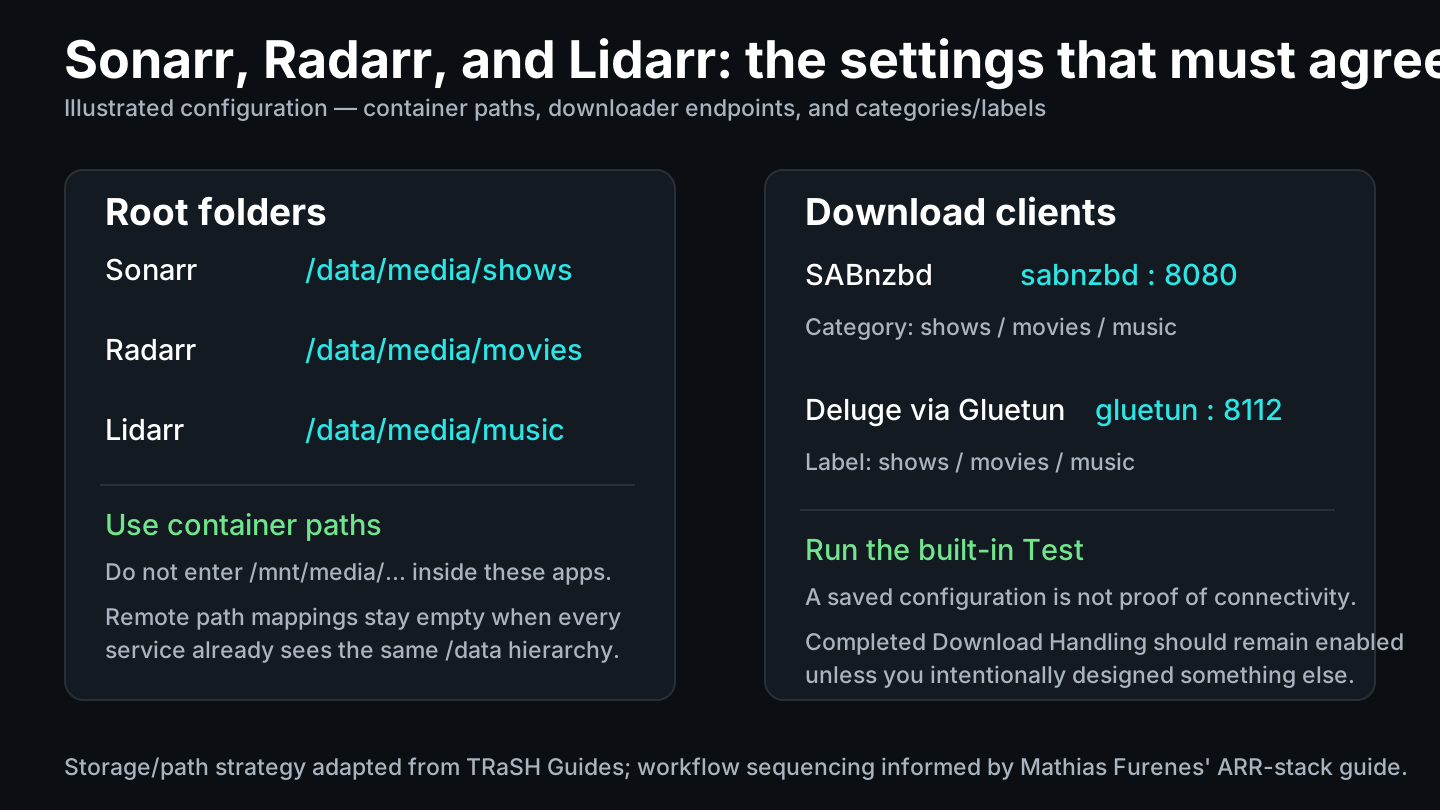
Run the download-client tests in Sonarr. Do not continue while they fail.
Step 12: configure Radarr
Root folder:
/data/media/moviesSABnzbd:
Host: sabnzbd
Port: 8080
Category: movies
Deluge behind Gluetun:
Host: gluetun
Port: 8112
Category/Label: movies
Configure naming and a quality profile that matches your playback hardware and storage goals, then run the built-in download-client tests.
Step 13: configure Lidarr
Root folder:
/data/media/musicUse the music category in SABnzbd and the music label in Deluge.
If you do not want automated music management, remove Lidarr from the Compose file. There is no benefit in running services you do not use.
Step 14: start and configure Bazarr
Start it:
sudo docker compose up -d bazarr
sudo docker compose logs --tail=100 bazarr
Connect to:
Sonarr: http://sonarr:8989
Radarr: http://radarr:7878
Bazarr sees the finished library at /data/media, the same path family reported by Sonarr and Radarr. If Sonarr reports /data/media/shows/... and Bazarr sees /data/media/shows/..., do not add a remote path mapping.
Configure your languages and subtitle providers, then validate one movie and one episode.
Step 15: prove Jellyfin exists before configuring Seerr
The old sequence asked Seerr to connect to Jellyfin before this guide had actually established a Jellyfin deployment. This revision makes the dependency explicit.
If Jellyfin is not already working, stop here and complete The Definitive Guide to Jellyfin on Ubuntu with Docker.
The reference Jellyfin deployment should already have:
/srv/data/mediamounted read-only as/media;- libraries such as
/media/movies,/media/shows, and/media/musicas needed; - a working administrator account;
- a tested playback path;
- port 8096 bound to an intended host/LAN address.
From the Docker host, verify the Jellyfin endpoint you plan to give Seerr:
curl -I http://JELLYFIN_HOST_LAN_IP:8096 || trueIn this reference design, Jellyfin remains in its own Compose project and does not need to join media-control. Seerr can use Jellyfin’s trusted LAN URL while using Docker service names for Radarr and Sonarr.
If you deliberately attach Jellyfin to the same external Docker network later, http://jellyfin:8096 can be valid, but that is an optional integration choice rather than a hidden prerequisite.
Step 16: start and configure Seerr
Start Seerr only after Jellyfin, Radarr, and Sonarr are available:
cd /srv/compose/arr-stack
sudo docker compose up -d seerr
sudo docker compose ps seerr
sudo docker compose logs --tail=100 seerr
Verify the container identity and health:
sudo docker compose exec seerr id
sudo docker inspect seerr --format '{{.State.Health.Status}}'
The process should run as the image’s node user with UID 1000, and the health check should become healthy.
During setup:
- connect Seerr to
http://JELLYFIN_HOST_LAN_IP:8096; - authenticate with the Jellyfin administrator when prompted;
- select the Jellyfin libraries Seerr should scan;
- connect Radarr using
http://radarr:7878; - connect Sonarr using
http://sonarr:8989; - select the correct
/data/media/...root folders and quality profiles; - decide which users may request, auto-approve, or administer;
- submit one movie request and one series request.
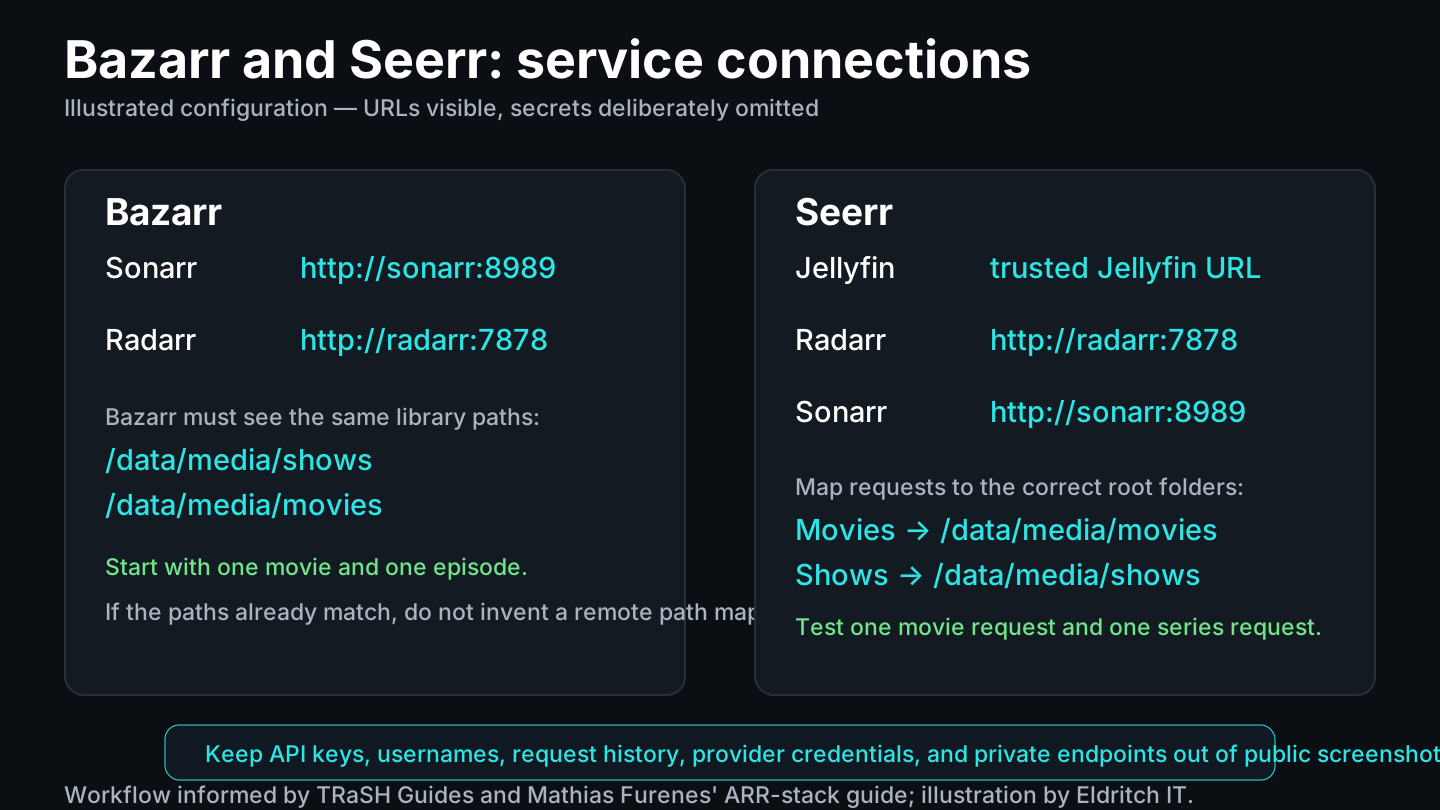
Normal household users should not need administrative access to Radarr, Sonarr, Prowlarr, or the downloaders.
Step 17: prove the entire workflow
Do not stop at green container status.
Run one small authorized request through the whole chain.
Movie test
- Submit a movie request in Seerr or add it directly in Radarr.
- Confirm Radarr receives the correct root folder and quality profile.
- Confirm Prowlarr can supply the configured search integrations.
- Confirm Radarr sends the job to the intended downloader.
- Confirm the downloader uses the
moviescategory or label. - Confirm the file lands under
/data/downloads/.../movies. - Confirm Radarr imports it into
/data/media/movies. - If using a torrent, verify the hardlink with
stat. - Confirm Bazarr handles subtitles if enabled.
- Confirm Jellyfin scans and plays the result.
Repeat the same process with Sonarr and the shows category.
The stack is working when the workflow succeeds.
Step 18: verify hardlinks instead of guessing
For a torrent import, compare the completed download and organized library file:
stat /srv/data/downloads/torrents/complete/movies/example.mkv
stat "/srv/data/media/movies/Example Movie (2026)/Example Movie (2026).mkv"
If the device and inode are identical, the two names refer to the same underlying data.
If they differ, check:
- are both paths on the same filesystem?
- do both live under the same Docker
/datamount? - can the
mediaidentity create hardlinks? - does the remote filesystem/export permit hardlinks?
- did you accidentally split downloads and media into separate Docker mounts?
Remote path mappings translate path names. They do not repair filesystems or hardlink support.
Step 19: keep FlareSolverr optional
Do not deploy a browser-automation workaround simply because another stack diagram contains it.
If a particular Prowlarr integration currently requires FlareSolverr and current documentation supports that configuration, follow the maintained TRaSH FlareSolverr guidance.
Keep it off by default.
Step 20: secure the management interfaces
The stack’s administrative interfaces contain API keys, download-client credentials, filesystem paths, and controls capable of moving or deleting files.
The reference Compose file already avoids one common mistake by binding published ports to STACK_BIND_ADDRESS instead of every host interface.
Treat access in tiers:
| Tier | Services | Intended audience |
|---|---|---|
| Playback | Jellyfin | Household users |
| Requests | Seerr | Approved request users |
| Automation | Sonarr, Radarr, Lidarr, Bazarr, Prowlarr | Administrators |
| Downloaders | SABnzbd, Deluge/Gluetun | Administrators |
| Host | SSH, Docker, storage mounts | Trusted operators |
Do not port-forward Sonarr, Radarr, Prowlarr, SABnzbd, or Deluge directly to the internet.
Docker’s published ports can bypass ordinary UFW/firewalld expectations. Do not treat a UFW deny rule as proof that a Docker-published management port is private. Bind deliberately, restrict source networks at the router/VLAN boundary or with Docker-aware firewall policy, and test from both an allowed and a denied client.
For remote administration, prefer a private-access design such as Tailscale or another VPN rather than exposing raw management ports.
Step 21: back up appdata and prove a restore
The media files are large, but appdata contains the databases, settings, API relationships, and automation policy that make the stack yours.
Create a protected staging directory:
sudo install -d -o root -g root -m 0700 /srv/backups/arr-stackFor a simple consistent snapshot, stop the stack and archive its appdata:
cd /srv/compose/arr-stack
STAMP=$(date +%Y%m%d-%H%M%S)

sudo docker compose stop
sudo tar --xattrs --acls \
  -C /srv/appdata \
  -czf "/srv/backups/arr-stack/arr-appdata-${STAMP}.tar.gz" \
  arr-stack
sudo docker compose start
Verify the archive can be read:
sudo tar -tzf "/srv/backups/arr-stack/arr-appdata-${STAMP}.tar.gz" | headAlso preserve securely:
/srv/compose/arr-stack/compose.yaml;- the real
.envin a protected secret backup, not public Git; - a sanitized
.env.examplefor version control; - image versions or digests;
- the storage mount and network assumptions.
A staging archive on the same disk as appdata is not an off-host backup. Copy it to independent storage.
Restore drill
Do not wait for an outage to discover whether the archive is usable. On an isolated test host or after deliberately stopping production:
- recreate the
mediaidentity with the intended numeric IDs; - recreate
/srv/dataor mount the intended test storage; - restore
arr-stackunder/srv/appdata; - restore the Compose project and protected
.env; - ensure
/srv/appdata/arr-stack/seerris writable by UID 1000; - run
sudo docker compose config --quiet; - start the services and verify the application/API relationships.
A backup you have never restored is a theory.
Step 22: update deliberately
Before an update:
cd /srv/compose/arr-stack
sudo docker compose config --quiet
sudo docker compose ps
sudo docker compose images
Then:
- read upstream release notes;
- confirm the latest appdata backup;
- record current image versions or digests;
- update one functional layer;
- recreate it;
- test the integration before moving to the next layer.
Example:
sudo docker compose pull radarr
sudo docker compose up -d radarr
sudo docker compose logs --tail=100 radarr
Do not combine an application database migration, a storage-layout change, and a network redesign into one maintenance window unless you are willing to debug all three boundaries at once.
Troubleshooting
Prowlarr cannot connect to Sonarr, Radarr, or Lidarr
Use Docker service names, not localhost:
http://sonarr:8989
http://radarr:7878
http://lidarr:8686
Then verify the network:
sudo docker network inspect media-controlRadarr or Sonarr says the download path does not exist
Ask what exact path the downloader reports, then verify the same path inside the automation container:
sudo docker compose exec radarr ls -la /data/downloads
sudo docker compose exec sonarr ls -la /data/downloads
If both sides report /data/..., you normally do not need a remote path mapping.
Downloads finish but imports copy instead of hardlink
Check exact files:
stat SOURCE_FILE
stat DESTINATION_FILE
Then confirm both locations are one filesystem under the same /data mount.
Bazarr can connect to Sonarr but cannot find files
API connectivity and filesystem visibility are separate. Bazarr must see the same /data/media/... path that Sonarr and Radarr report.
Deluge is unreachable behind Gluetun
Deluge shares Gluetun’s network namespace. The management endpoint is http://gluetun:8112 from the other containers, and the host port is published on Gluetun.
Check Gluetun first:
sudo docker compose logs --tail=100 gluetunIf Gluetun is unhealthy, Deluge being unavailable is the desired failure mode.
Seerr reports permission errors
Check the host directory and the container identity:
ls -ldn /srv/appdata/arr-stack/seerr
sudo docker compose exec seerr id
The host directory should be writable by UID/GID 1000:1000 for the official Seerr image.
The OS drive is filling unexpectedly
If /srv/data is supposed to be a separate mount:
mountpoint /srv/data
df -h / /srv/data
sudo du -xhd1 /srv | sort -h
If the mount is absent, stop the writers before repairing it. Do not mount a remote filesystem over locally written files and assume those files disappeared safely; they are merely hidden beneath the restored mount.
Final validation checklist
Host and storage
- Docker was installed from the intended source and
hello-worldsucceeds. -
/srv/datais the intended storage location. - A remote/separate
/srv/datais proven withmountpoint, not onlyfindmnt --target. - Download and library paths share one container root at
/data. - Hardlink behavior was tested before the stack depended on it.
- The
mediaidentity can write the required download and library roots. - Seerr appdata is owned/writable by UID 1000.
Networking
- Management ports bind only to the intended host/LAN address.
- Sonarr, Radarr, Lidarr, Prowlarr, Bazarr, SABnzbd, and Seerr share
media-controlas required. - Deluge uses Gluetun’s namespace only when the VPN is required.
- VPN kill-switch behavior was tested.
- Internal APIs use Docker service names rather than
localhost. - Administrative ports are not exposed directly to the public internet.
Applications
- SABnzbd categories match the *arr applications.
- Deluge labels match the *arr applications.
- Prowlarr tests successfully against Sonarr, Radarr, and Lidarr.
- Sonarr uses
/data/media/shows. - Radarr uses
/data/media/movies. - Lidarr uses
/data/media/music. - Bazarr sees the same
/data/media/...paths reported by Sonarr and Radarr. - Jellyfin is working before Seerr setup begins.
- Seerr can submit one movie and one show request.
- Jellyfin scans and plays the final imported file.
Recovery
- Appdata is backed up away from the Docker host.
-
.envsecrets are not committed to Git. - Current image versions or digests are recorded.
- Compose validates with
docker compose config --quiet. - At least one restore has been tested.
What I learned from the source guides
Furenes’ Synology guide was especially useful for seeing the whole stack as a connected system. It spends time on application configuration and integration rather than stopping after the containers start.
TRaSH Guides provided the stronger storage and application design discipline: one shared filesystem root, consistent container paths, hardlinks and atomic moves, deliberate downloader categories/labels, and avoiding unnecessary path mappings.
My working Linux/Docker stack ended up combining those ideas rather than copying either guide literally.
References and further reading
Resources this build was based on
- TRaSH Guides
- TRaSH Guides — Docker folder structure
- TRaSH Guides — Hardlinks and Instant Moves
- TRaSH Guides — Deluge basic setup
- TRaSH Guides — SABnzbd basic setup
- Mathias Furenes — synology-arr-guide
Upstream documentation to check before deployment
- Docker Engine on Ubuntu
- Docker packet filtering and firewalls
- Docker Compose file reference
- Gluetun provider setup
- LinuxServer Sonarr
- LinuxServer Radarr
- LinuxServer Lidarr
- LinuxServer Prowlarr
- LinuxServer SABnzbd
- LinuxServer Deluge
- Bazarr documentation
- Seerr Docker documentation
- Seerr migration guide
- Jellyfin Docker guide
AI transparency
AI assisted with consolidating the source guides, researching current documentation, technical cross-checking, editing the structure, sanitizing example configuration, and preparing original diagrams and illustrated configuration panels. The stack, the application choices, and the decision to adapt the Synology-oriented material to a Linux/Docker build are based on the environment I actually worked with. The September 13, 2026 remediation pass aligned the guide with the published Jellyfin storage/identity contract, added a complete Docker install path, corrected mount validation, separated Seerr’s fixed UID 1000 from the LinuxServer PUID/PGID model, moved Jellyfin ahead of Seerr in the dependency order, and added secure bind, backup, and restore instructions.
Publication review and currentness
This walkthrough received a substantial remediation pass on September 13, 2026. The revision now uses the same /srv/data host contract as the Jellyfin guide, includes Docker’s complete official Ubuntu repository setup, verifies an exact storage mount with mountpoint, reuses the media service UID/GID for LinuxServer applications, and handles Seerr separately because its official container runs as the node user with UID 1000.
The deployment order was also corrected: Jellyfin must already be working before Seerr is configured. Management ports are bound to a chosen trusted LAN address instead of every interface, the VPN-provider step now gives an explicit stop condition and route to Gluetun’s maintained provider documentation, and the backup section includes an executable snapshot and restore drill.
Container images, VPN-provider variables, application settings, and upstream recommendations can change. Recheck the linked primary documentation before applying the guide to a new production deployment.
Security and privacy note
All infrastructure examples in this publication are intentionally generic. Real hostnames, IP addresses, domains, NFS exports, account identifiers, API keys, VPN credentials, tracker or indexer identities, private endpoints, and environment-specific secrets are excluded. The reference paths /srv/data, /srv/appdata/arr-stack, and /srv/compose/arr-stack are intentionally consistent across this guide; adapt them only if you carry the same choice through every dependent service.
Related Field Notes
For the broader design decisions behind this stack, continue with Why Docker Became My Default, Not My Rule and The Storage Host Became a Contract, Not Just a Server. For playback and library design, see The Definitive Guide to Jellyfin on Ubuntu with Docker.